


Gate Pay supports generating payment links and static collection codes (addresses) within the merchant dashboard. This feature is designed for merchants or individuals who do not have API integration capabilities, providing a fast and easy way to create and use payment methods, along with comprehensive billing records in the merchant dashboard for accounting and reconciliation purposes.
Payment Links
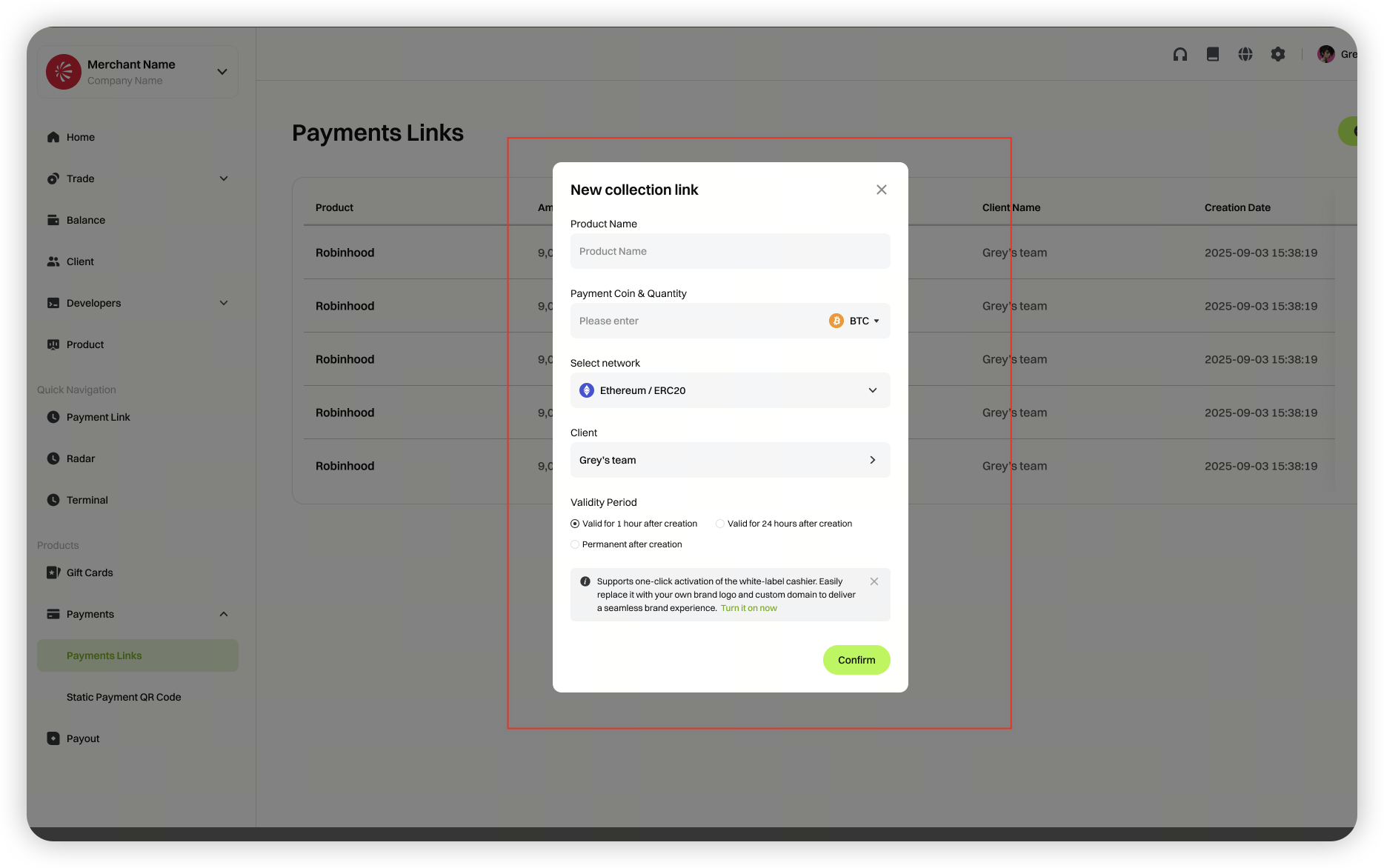
Payment links can be generated directly in the merchant dashboard. Merchants can choose the cryptocurrency, network, validity period, and other details for receiving payments from customers.
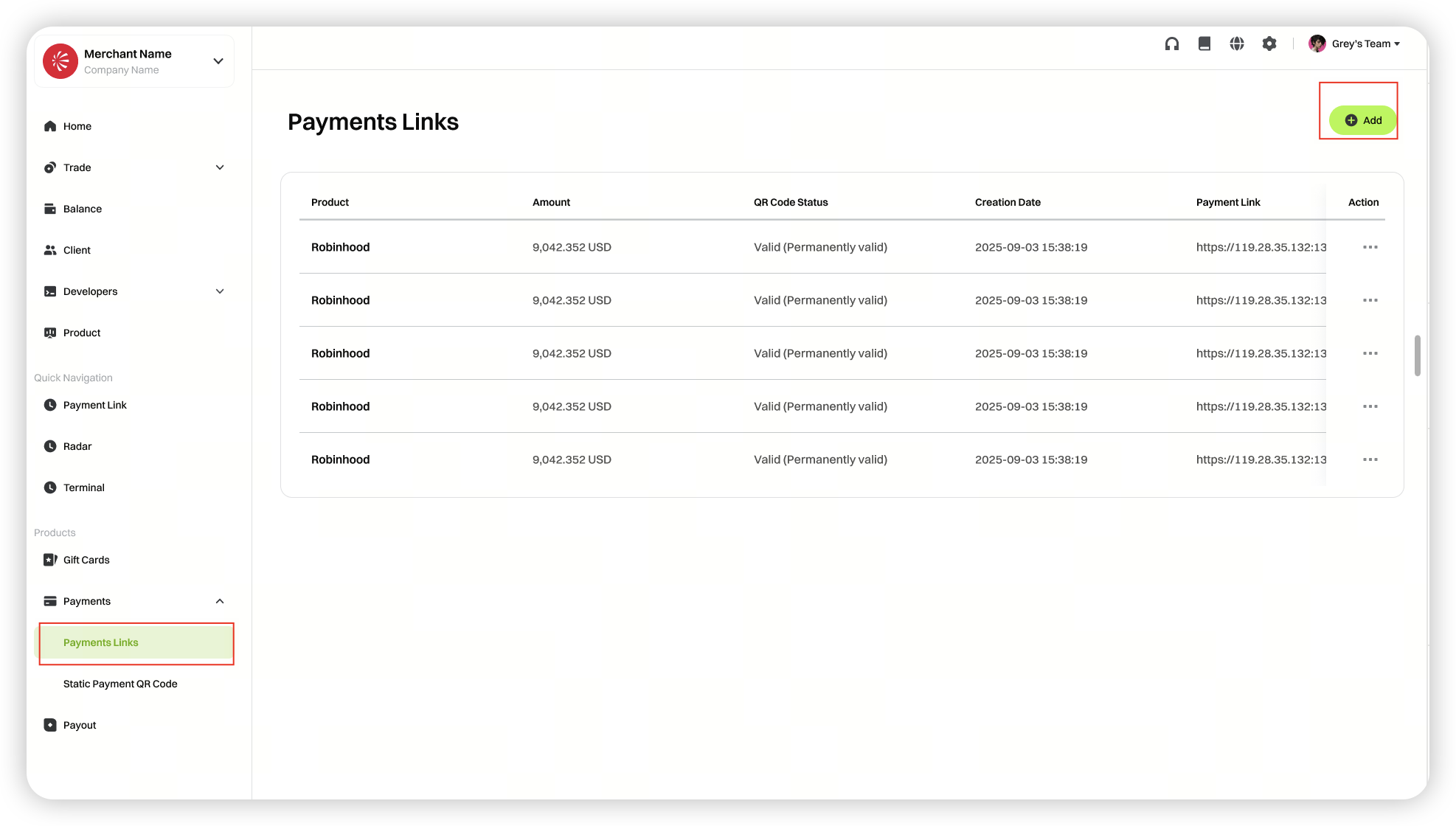
1. Log in to the merchant dashboard. Click on [Collection], select [Payment Link], and then click [Add New].
 **2. Fill in the required information and click [Confirm] to generate the payment link**
(*Product name, cryptocurrency and amount, network, customer, validity period)
**2. Fill in the required information and click [Confirm] to generate the payment link**
(*Product name, cryptocurrency and amount, network, customer, validity period)
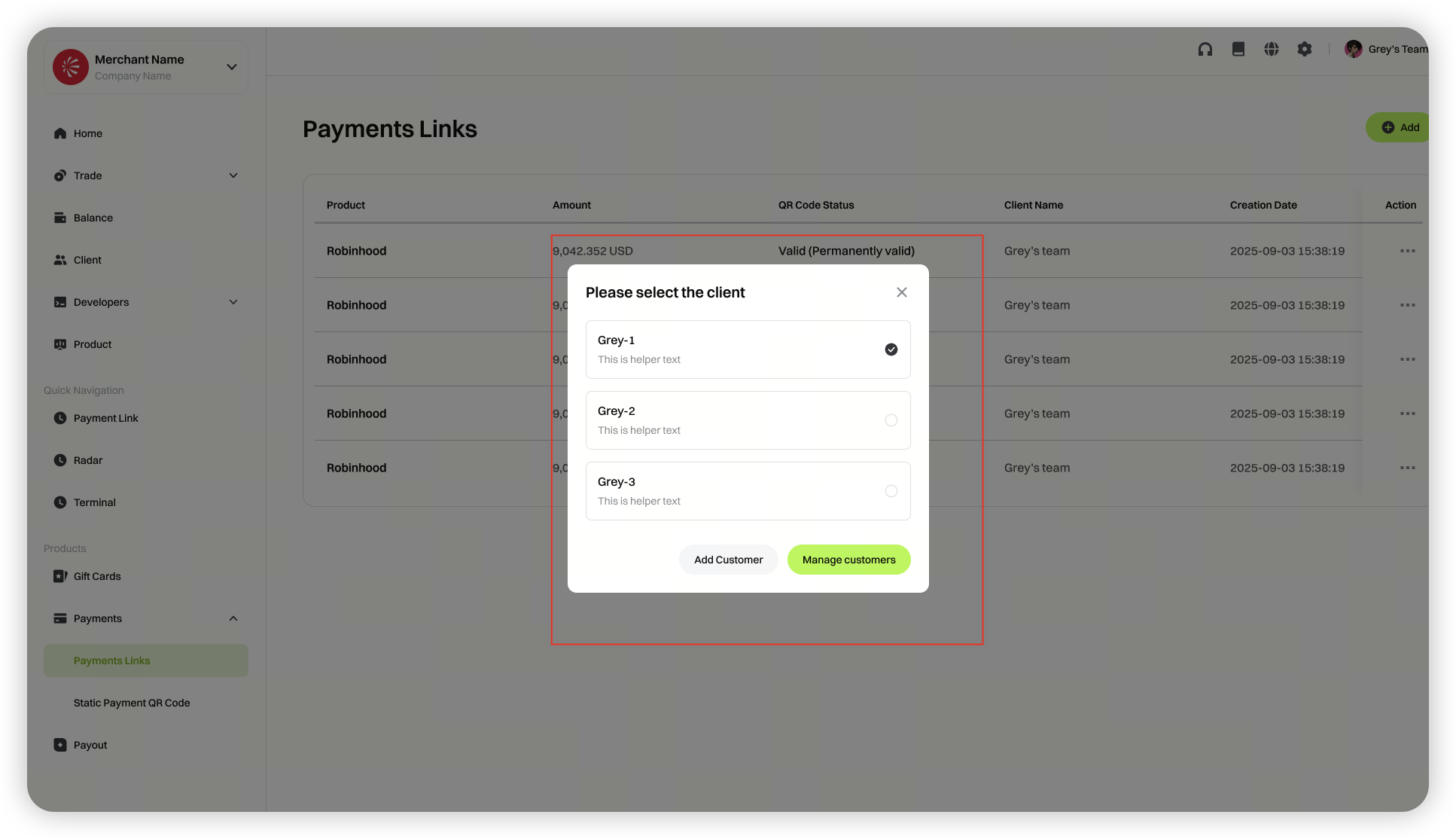
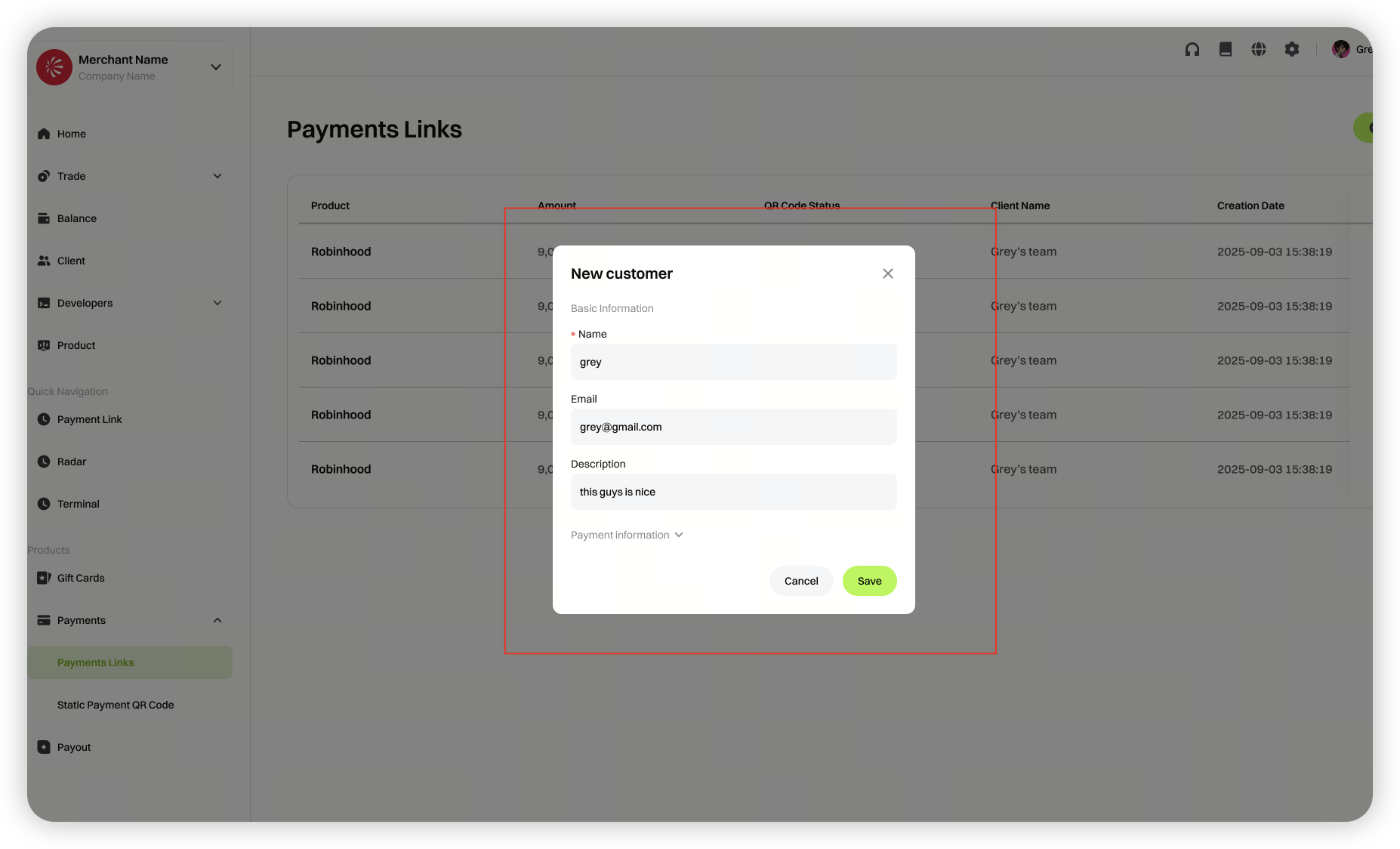
 You can select an existing customer or add a new one under [Client]
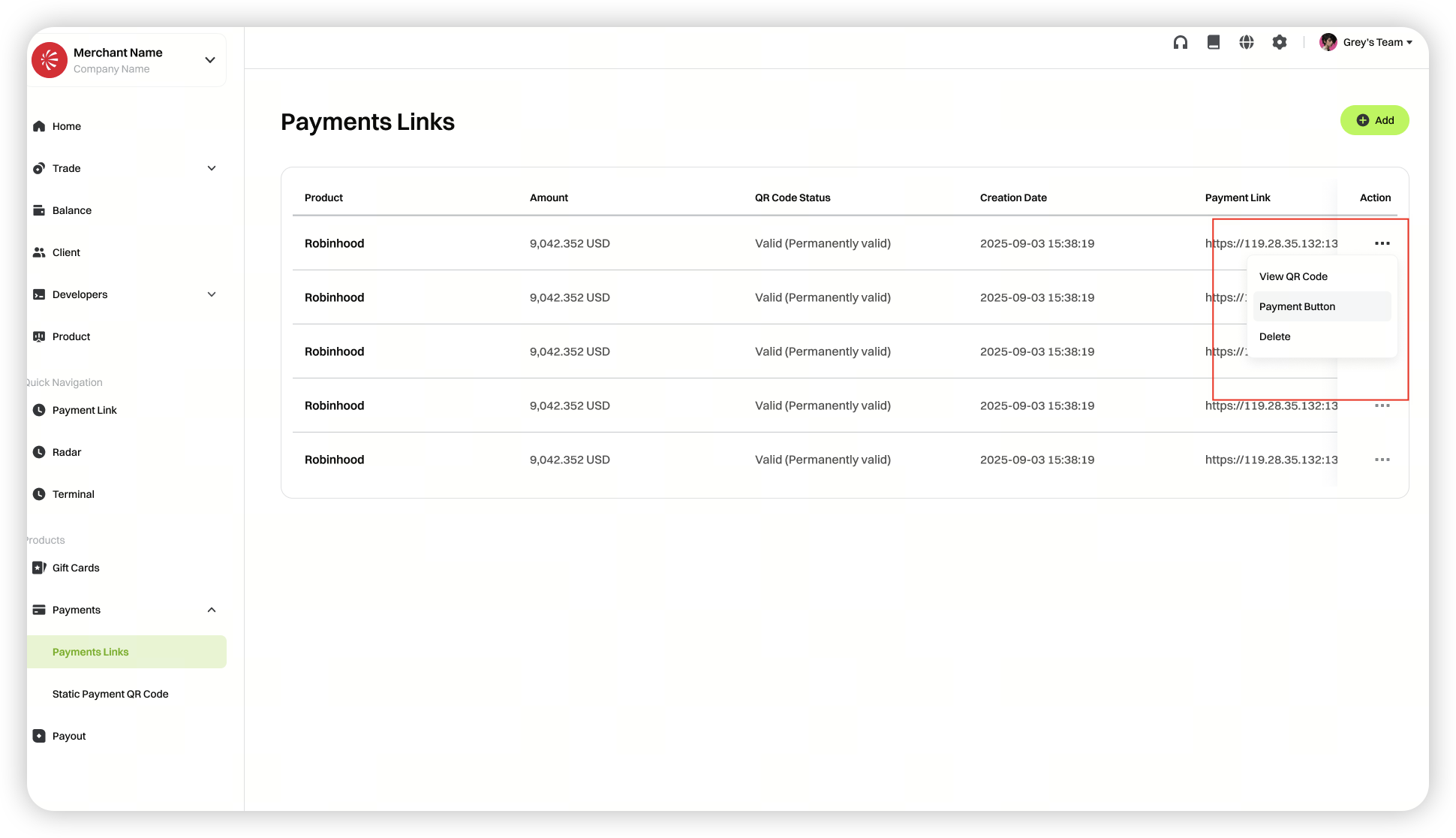
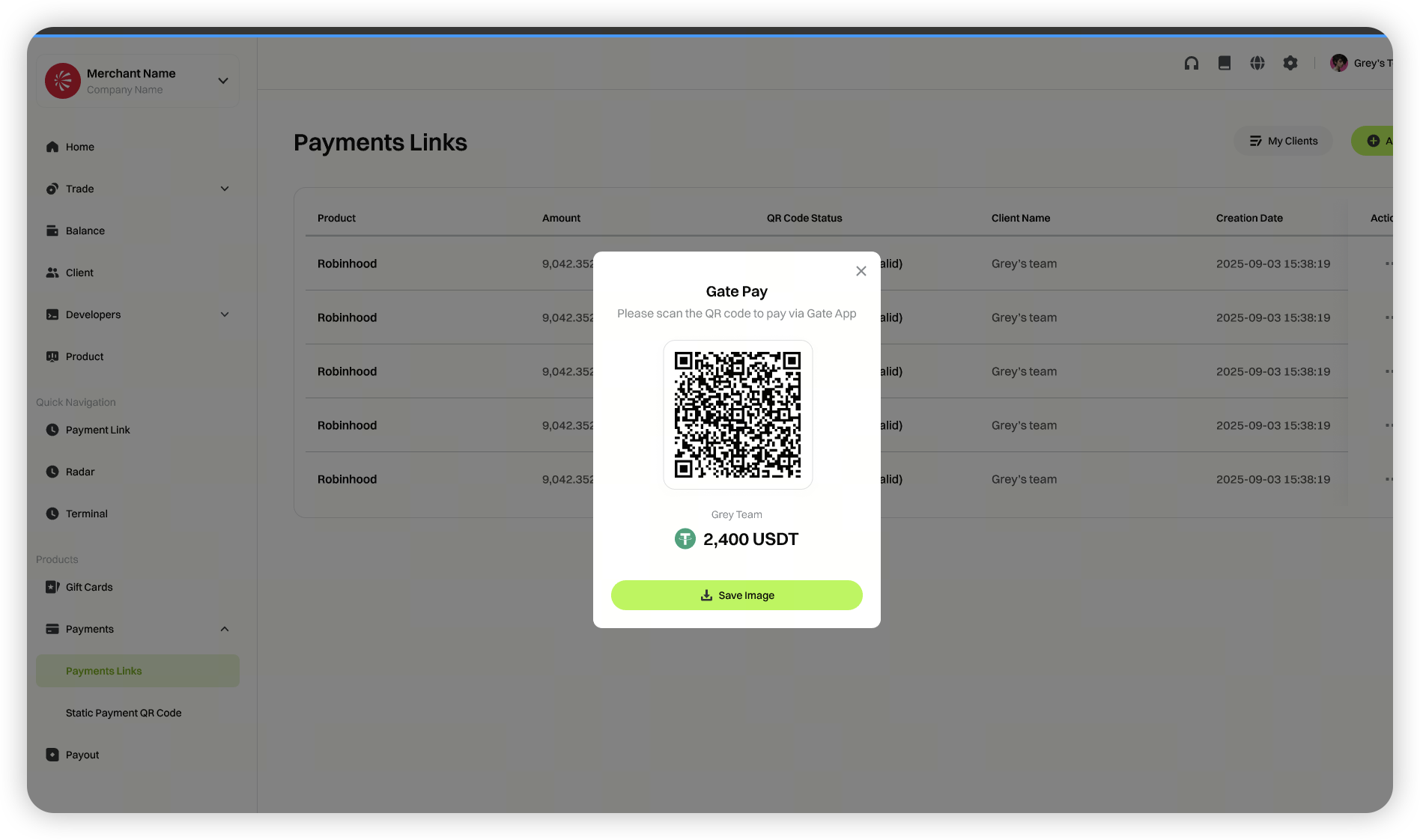
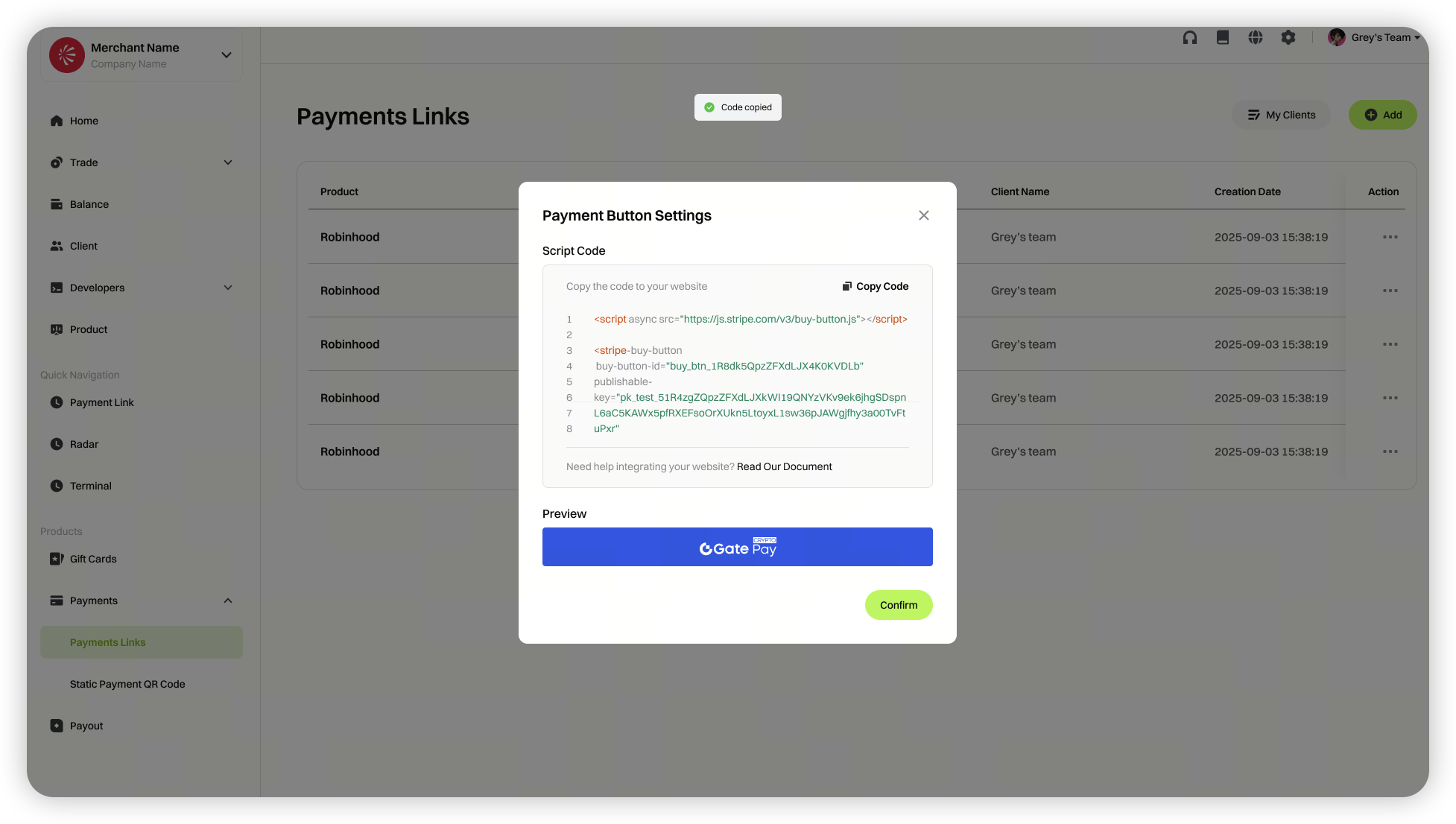
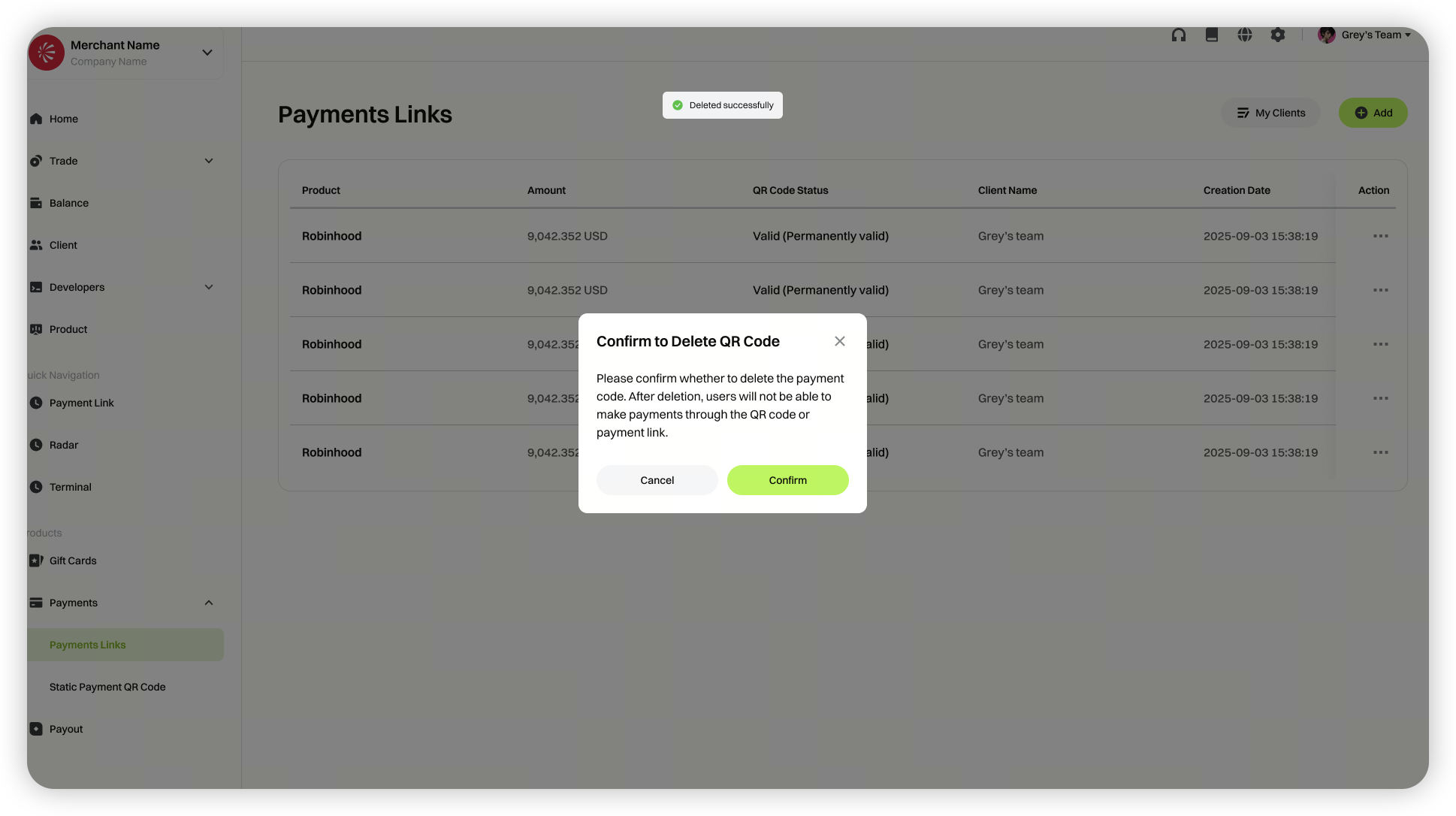
3. After generating the link, click [Actions] to view the payment QR code, payment button, or delete the link
 View QR code
 Payment button settings
 Delete
Static Collection Codes
Unlike Gate Pay's on-chain address payments and QR code payments (where the collection address is bound to a specific order and becomes invalid once the order ends), static collection addresses can be set to be valid for the long term or for a specific period. They are suitable for both online and offline payment scenarios.
Web3 Address Collection Code
1. Log in to the merchant dashboard. Click on [Payment], select [Static Collection Code], and then click [Web3 Address Collection Code].
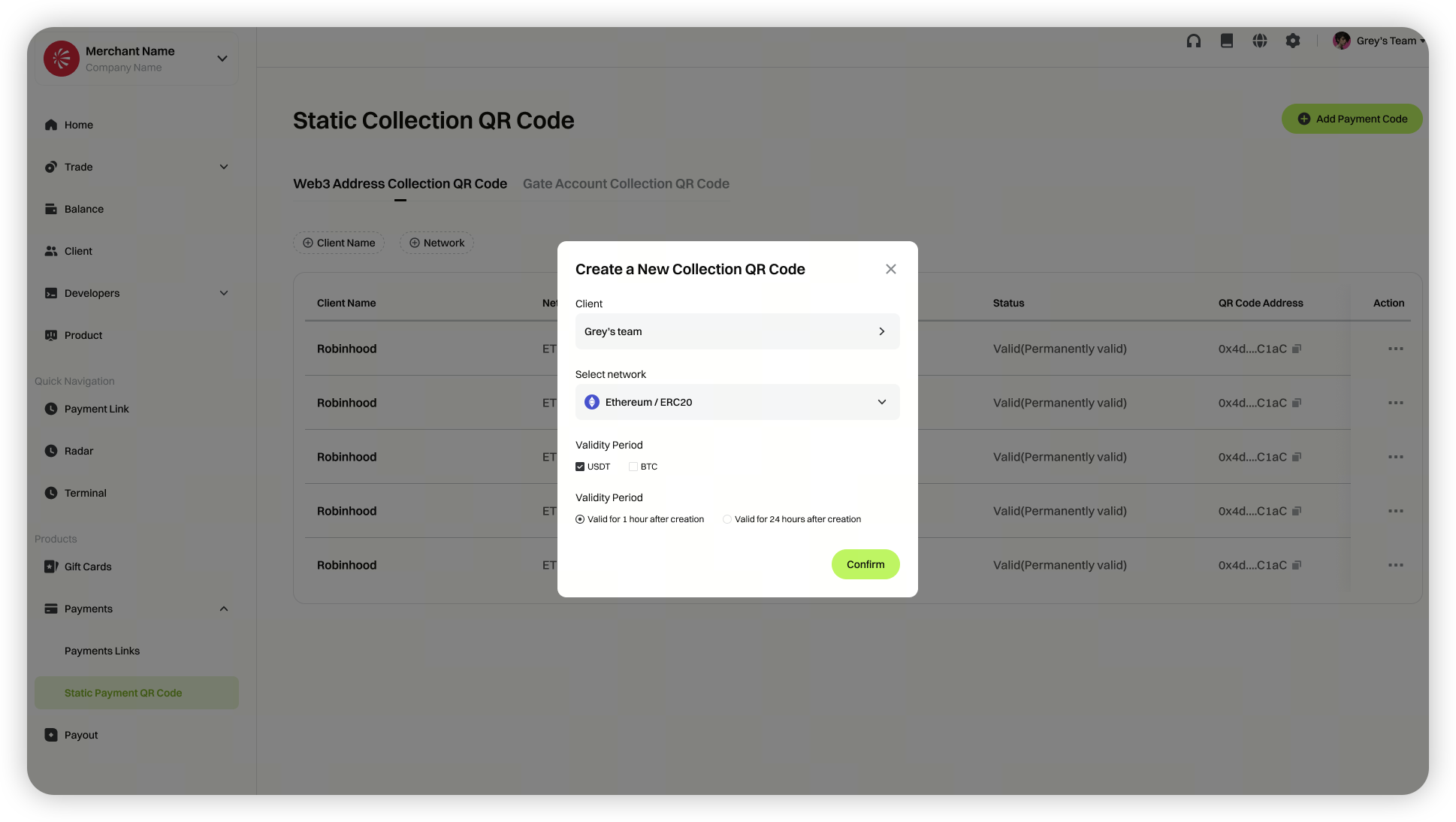
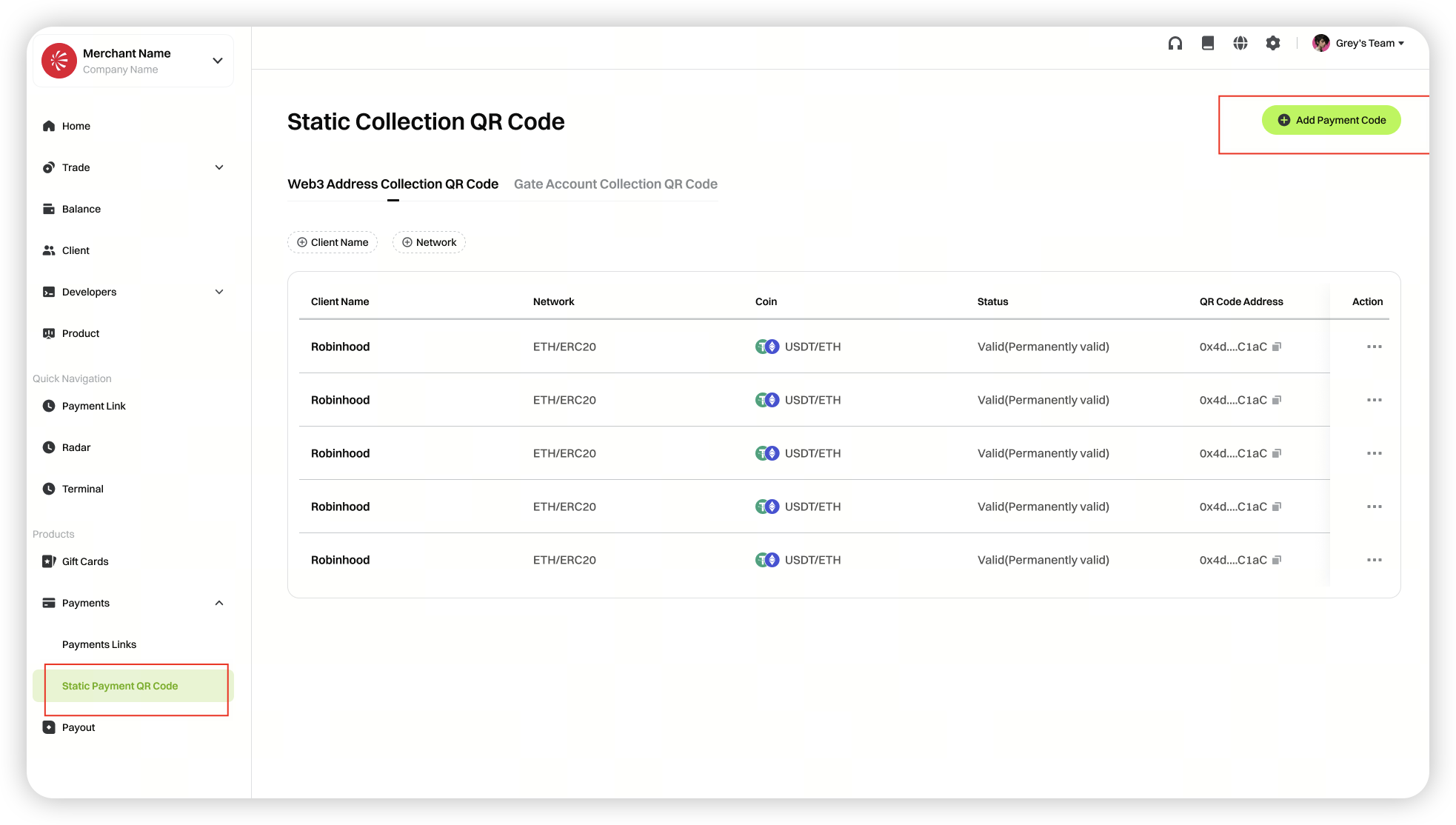 **2. Select [Add New], fill in the required information to generate the collection code.** (*Customer, network, cryptocurrency, validity period)
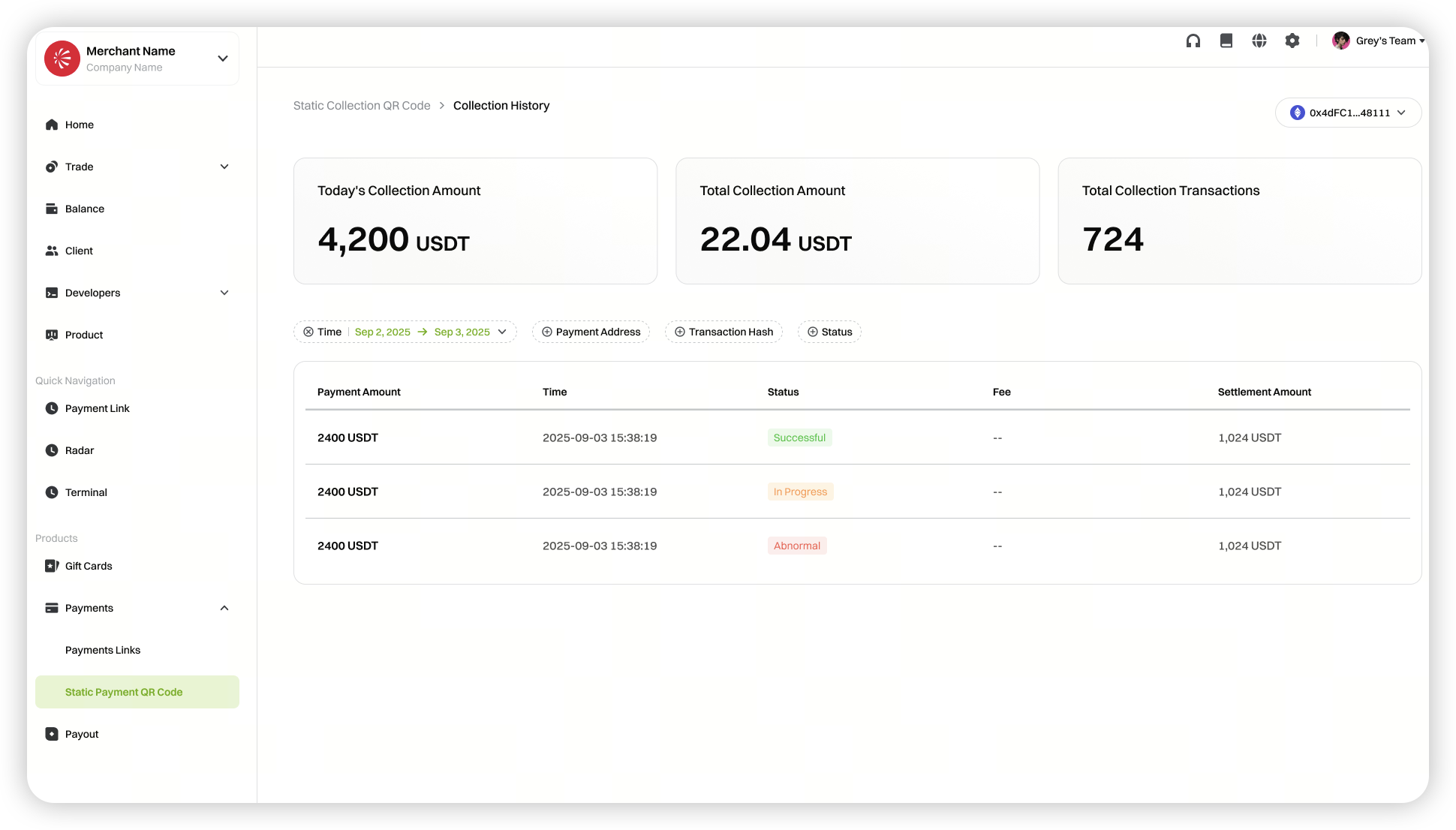
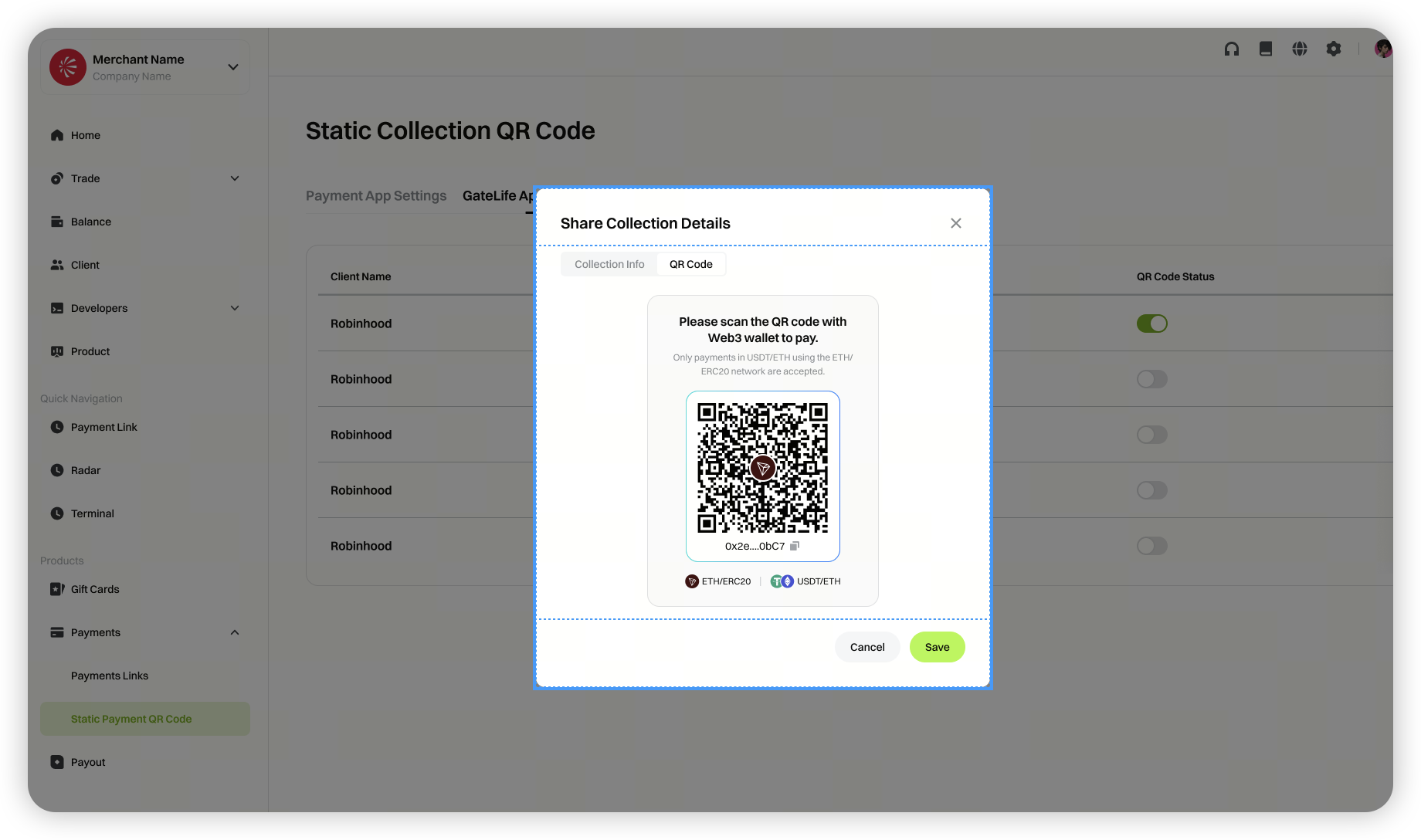
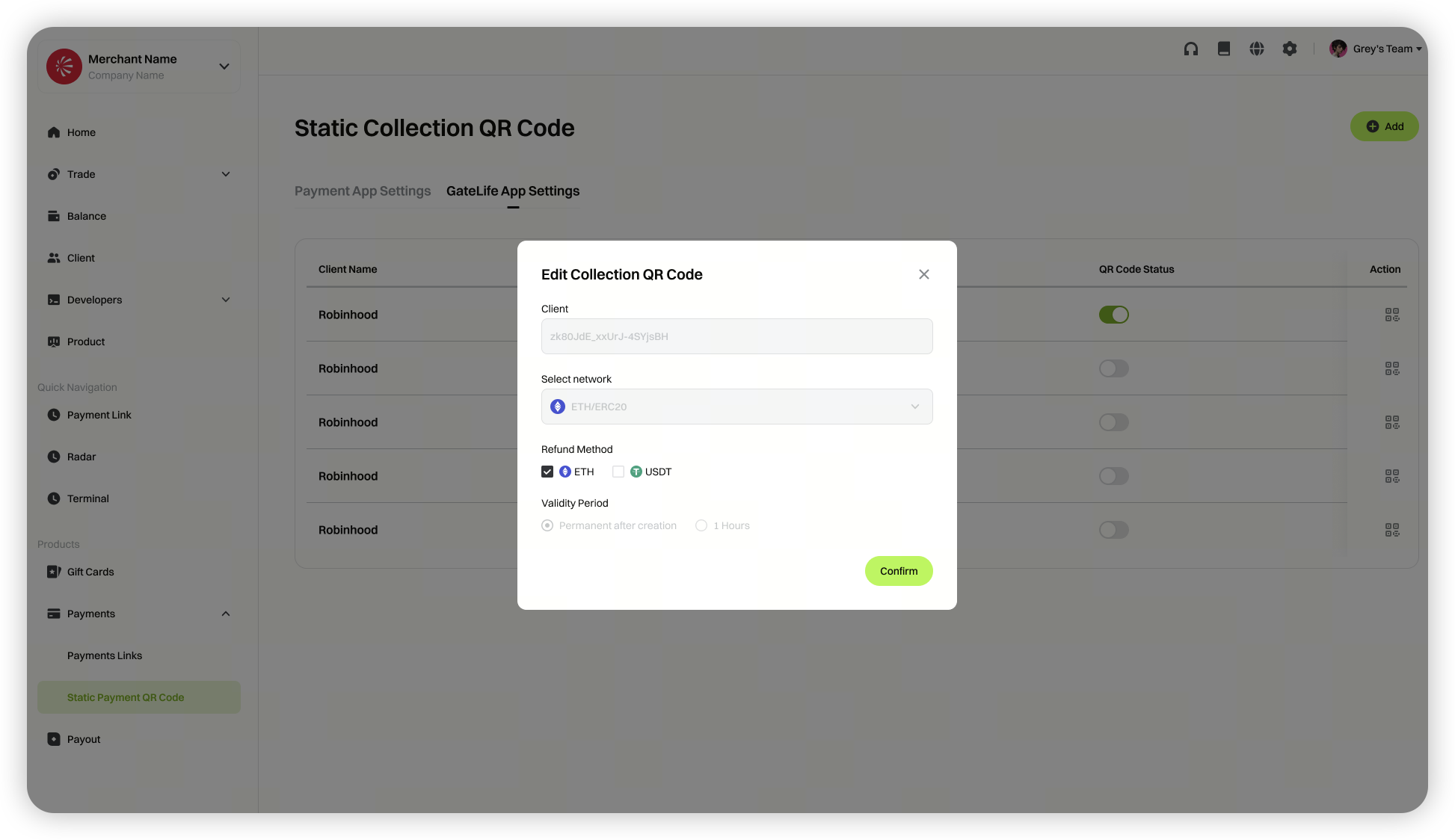
 **3. After generating the collection code, click [Actions] to view payment records, share the QR code, edit, or delete the collection code**
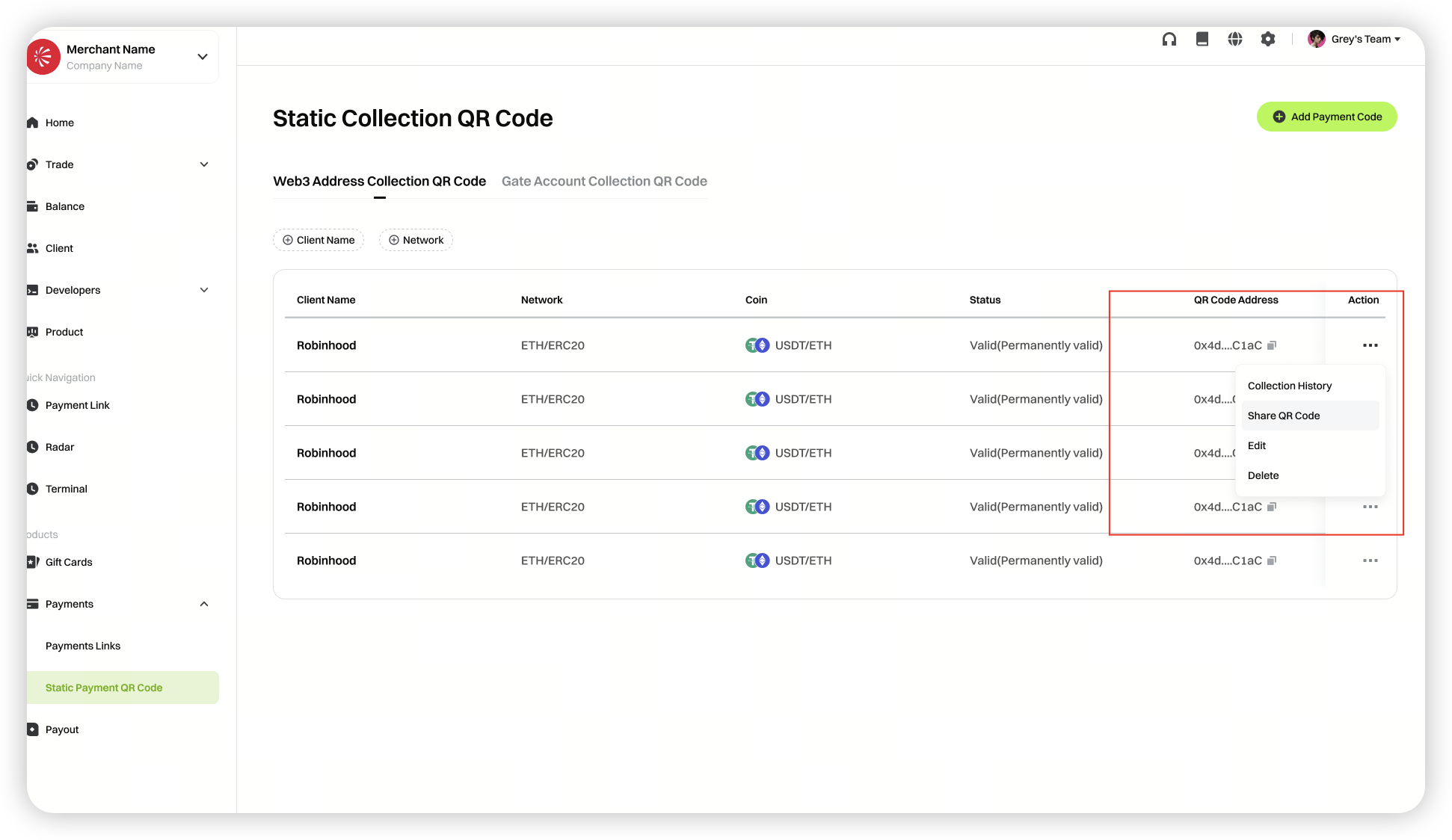 Payment records
 Share QR code
 Edit collection code
Gate Collection Code
Gate Collection Codes are only available for Gate users.
1. Log in to the merchant dashboard. Click on [Payment], select [Static Collection Code], and then click [Gate Account Collection Code]
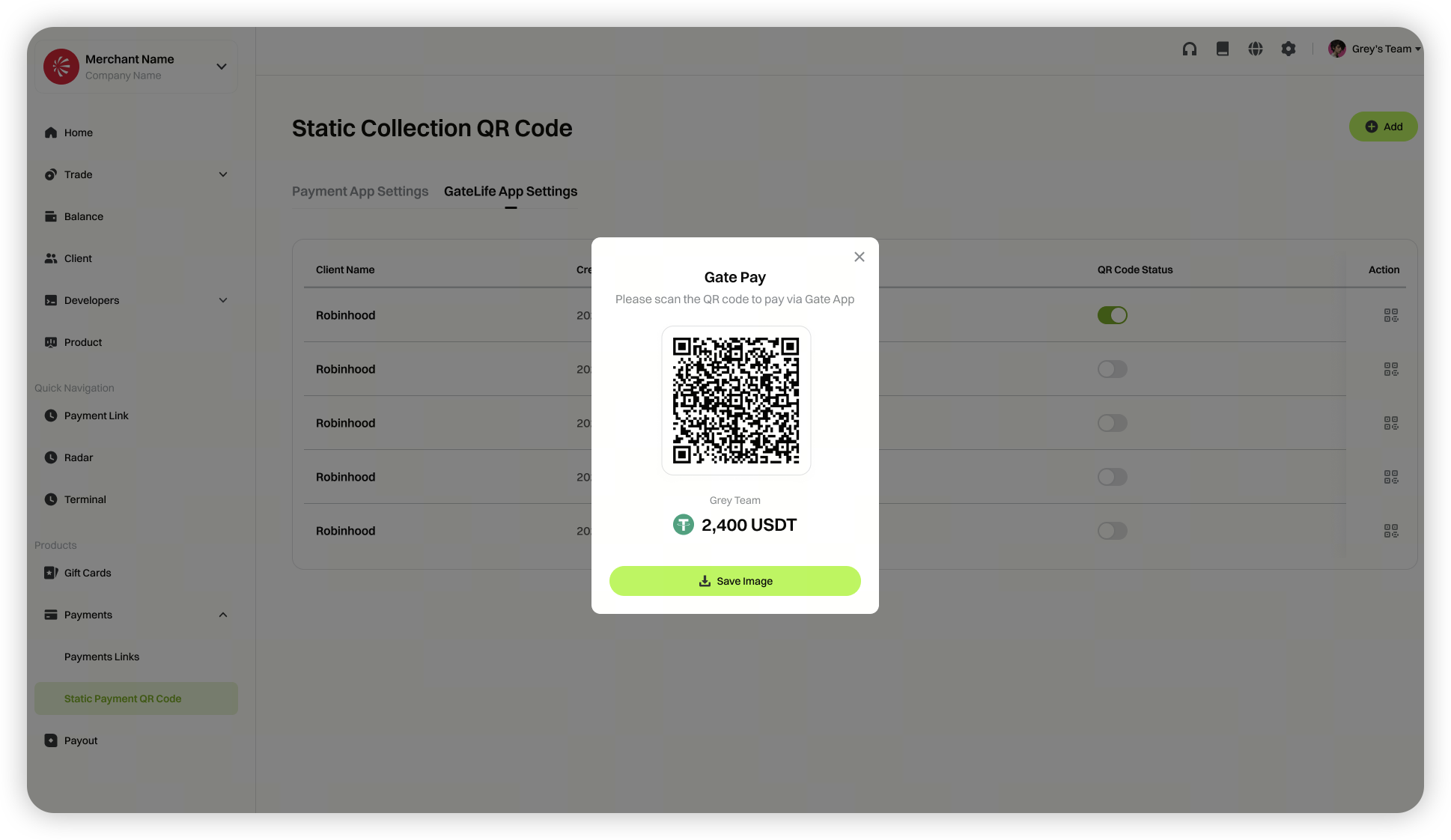
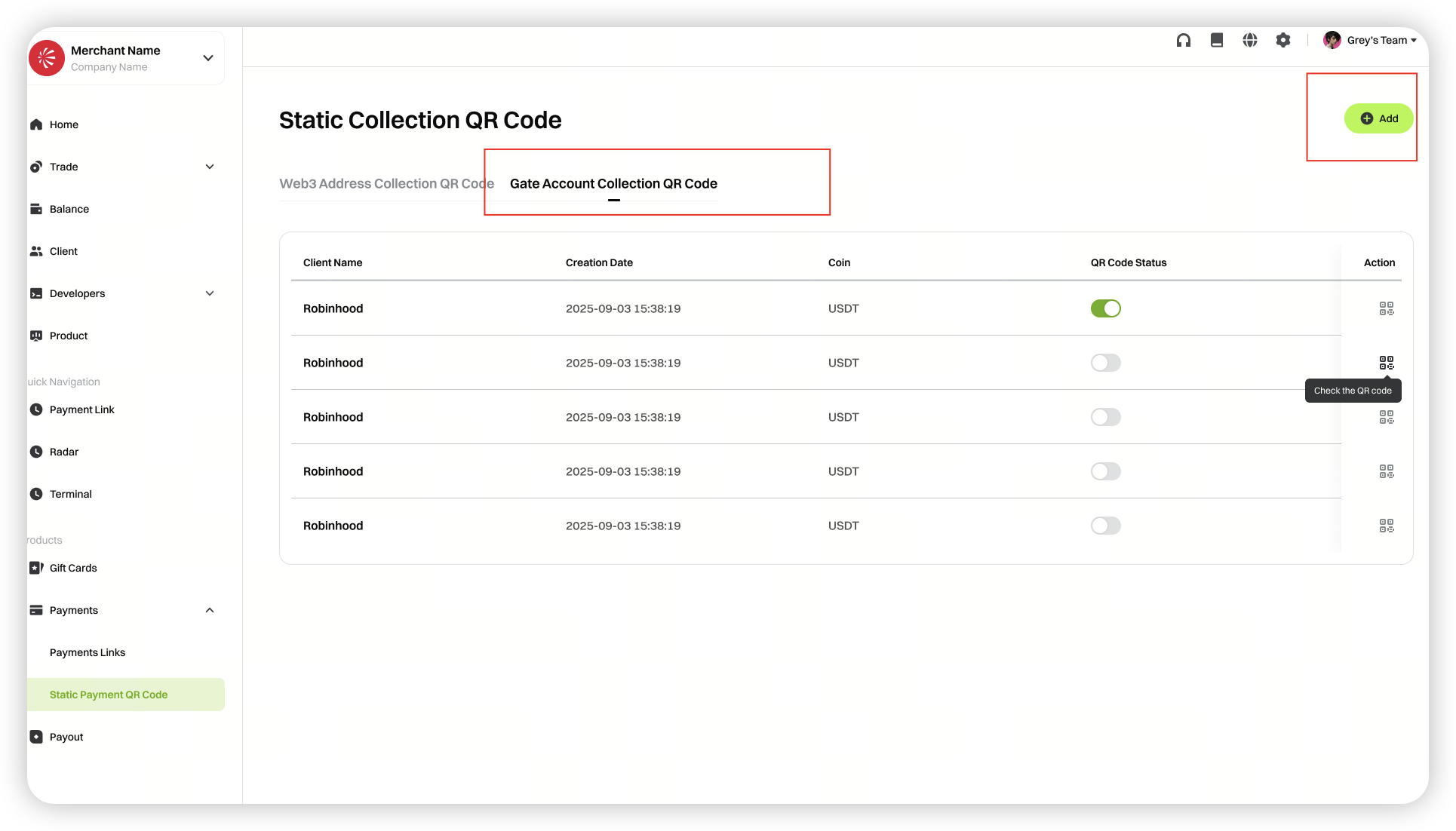 **2. After generation, click [Actions] to view the QR code**
The content provided herein is for reference and educational purposes only and does not constitute any financial, investment, trading, or legal advice, nor does it constitute an offer or solicitation to buy or sell any digital assets. Gate makes no express or implied representations or warranties regarding the accuracy, completeness, or timeliness of the information contained herein. Product features, interfaces, rules, and fee structures may be updated or adjusted at any time. Please refer to the latest announcements and the actual information displayed on the Gate platform for the most accurate details.
Digital asset investments involve significant risk, and prices may fluctuate substantially. You may lose the entire amount of your investment. Please make decisions cautiously based on your own financial situation and risk tolerance after fully understanding the associated risks. If necessary, you are advised to consult an independent professional financial or legal advisor.
For more information about potential risks, please refer to Gate's Risk Disclosure and User Agreement.
